Using Google Keep to Stay Organized This Summer
Caylie Gaccione
Curriculum Specialist

Summer is the perfect opportunity for educators to rest, relax, and recharge from the stress of the school year. It can also be a great time to get organized for the year ahead, and even in your personal life. In doing so, you will be more equipped to support your students, colleagues, and yourself in the future.
There are so many organization tools out there that it can be difficult to choose the right one for you. Google Keep is one way to arrange your notes and ideas. It is a free, easy-to-use option that can be utilized to help you take notes and aid in productivity, So, what is Google Keep all about and how can you use it to enhance organization this summer?
What is Google Keep?
Google Keep is a note taking website/application offered through Google Workspace. Essentially, it is a bulletin board at your fingertips, that can be used to organize ideas, make lists, write quick notes, and so much more. It is essentially a space to compile virtual sticky notes. Rather than filling your desk or home with random notes and ideas, you have them all in one place that you can access anywhere, at any time.
Key features
Now that we know what Google Keep is, we are ready to dive into some of the key features that we can use to get organized this summer!
Take a new note
This is where you can start from scratch. Simply add a title and a note to begin.
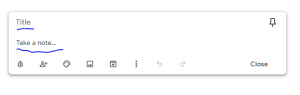
- You can even create your own headers (as images) to get even more organized. Click on the “add image” icon and choose from images saved to your computer. I like to use Canva to create my own headers, which will keep all of my notes distinguishable as I start adding to my Google Keep this summer!
Use checkboxes
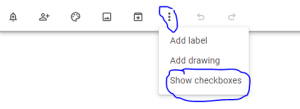
If you want to add something as a “to-do list,” you can add checkboxes that you can check off as you go. When creating a new note, click the 3 dot menu and then select “Show checkboxes.”

Add color coding
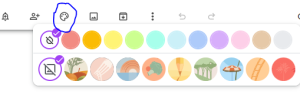
I highly recommend adding color coding or even different background options to your notes. This will allow you to use different colors for different purposes, such as home life, school life, etc. Click the painter’s palette to begin!

Use drawings
If you are interested in having a larger canvas to create your notes by hand, select the paint brush icon to create a new note with a drawing. This will open up a page where you can utilize pen tools, highlighting, various backgrounds, and more!

Set reminders
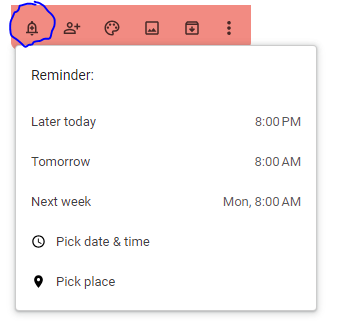
Choose a date and time for a reminder notification that you can associate with each of your Google Keep notes.
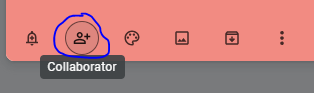
Share notes with collaborators
This will allow others to view and edit notes that you create. Type in the email address of who you would like to share information with. The person will get a link to open the note and add/edit items. This is a great tool for connecting with co-teachers or support staff over the summer and throughout the school year.
Ideas for organization
Now that you know what Keep is all about as well as some features to get you started, we are ready to dive into some options for using Keep that you can try out this summer and into the next school year:
- Make a plan for the next school year: Google Keep is the perfect space to store any ideas that you have for your classroom, instruction, students, etc. You can even use voice notes or speech-to-text rather than having to type everything (this is an app-specific tool).
- Map out summer goals: Remember that with all of the hard work and preparation for the school year to come, you also want to take the time to focus on yourself. Whether it’s a summer bucket list or a reading list, you can still keep your ideas in one place.
- Save websites of interest: Throughout the summer, you may come across different websites and applications that you are interested in using with your students. I would always copy links or write down different website names, but Google Keep is a great solution for storing these websites for easy access later on.
- Organize printed notes: Whether you are attending summer PD sessions or compiling notes from staff meetings throughout the year, you can utilize the “grab image text” tool to take a photo of your notes and then upload it to your Google Keep, which will convert hand-written notes to text.
Organization example
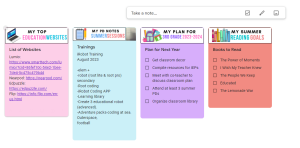
Here is a peek at how I arranged my Google Keep to maximize productivity this school year. Feel free to use it as inspiration for your own!
Remember that even with all of these new ideas, take the time to relax and reset this summer. Try out Google Keep and be sure to share some of your favorite organization tools with me on social media: @technicallycaylie on Instagram.
Be sure to check out our Google OTIS category as well as many other courses in the OTIS Course Library.
For more tips, tricks, and tools for teaching in and out of the classroom, check out more content on the Teq Talk blog or our YouTube channels OTIS for educators and Tequipment.
We also offer virtual professional development, training, and support with OTIS for educators. Explore the technology and strategies that spark student success — no matter where teaching or learning are happening!
Follow us on social:
 edteq
edteq  OTIS4educators | Teq Products | iBlocks
  OTIS4educators | MyTeq
  Teq
Teq
0 thoughts on “Using Google Keep to Stay Organized This Summer”
Related Articles & Other Recommended Reading

Top 10 Ways to Celebrate Pi Day
Did you know that the first official Pi Day celebration occurred in 1988 at the Exploratorium in San Francisco? In America, we celebrate on March 14th because 3.14 are the first digits of the mathematical constant known as pi. However, in areas such as the United Kingdom, people celebrate on July 22nd. Why? This is […]

7 New PD Courses to Transform Your Classroom for February 2026
Get ready for Digital Learning Day on February 26th! Celebrate with 7 brand-new OTIS courses that make edtech integration easy. From AI-driven lesson planning to interactive classroom tools, master the tech your students love, without the steep learning curve. Here are 7 new PD courses to transform your classroom for February 2026! Check Out What’s […]

Check out our PD Micro-Credential: The Science of Reading
Earlier this year, OTIS for educators launched a PD micro-credential focused on “The Science of Reading.” This 10-part online course takes just under eight hours to complete. “The Science of Reading” micro-credential PD provides participants with a solid foundation of the tenets of reading instruction. We will delve into each component, critical for understanding the […]