7 Canva Secrets Every Teacher Should Know
Michelle Hollander
Director of Educational Content
News
Are you looking to take your Canva practice to the next level? Here’s the “inside scoop” on how to curate high-impact materials that resonate with students! With these tips and tricks, you can streamline your workflow and empower creativity using Canva’s cutting-edge abilities. Here are seven Canva secrets every teacher should know!
-
Create with canva.new
Want a quick way to save a little time? Bypass the Canva homepage and launch a blank canvas instantly by typing canva.new into the address bar.
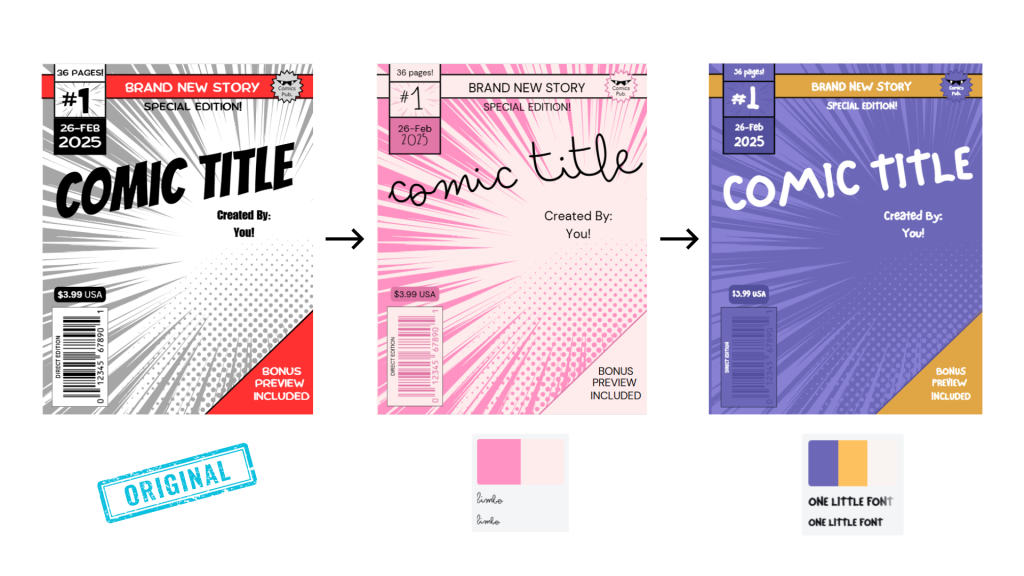
Style match any template
With a single click, you can extract colors and fonts from one design or brand kit and apply them to a new template. Also, if you have an image that you love, you can right-click it, select “Apply colors to page,” and instantly generate a palette based on that image.
Give live feedback with the Classwork Section
Not only can you review completed student work, but you can monitor student progress in real-time. If desired, you can also leave stickers as feedback on their designs. This section keeps a version history so you can see the evolution of students’ thought processes.
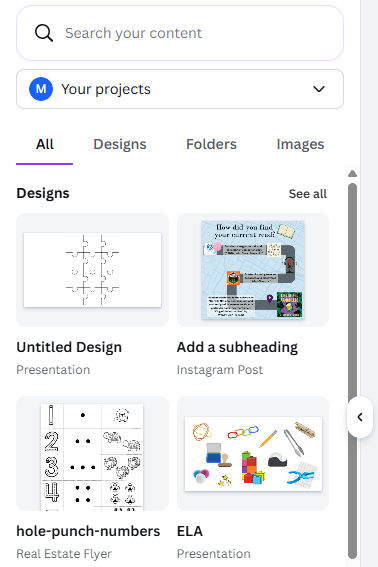
Embed projects into new designs
Gone are the days of manual copying and pasting! Did you know that you can treat previous designs as “smart objects” and use these components in new projects? Additionally, when you search for your “Projects” folder within Canva’s editor, you can import either a single page or the entire deck as an embedded element.
Record with Canva Studio
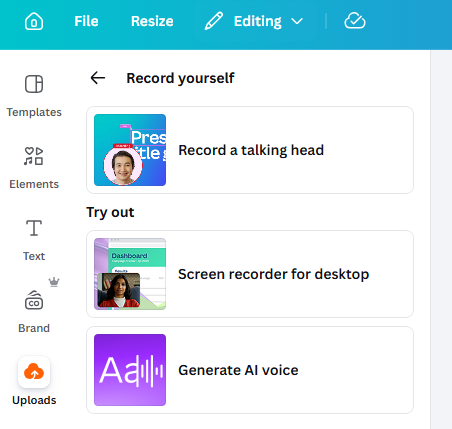
Head to the Uploads section, located on the sidebar, where users can capture their screen, camera, and microphone simultaneously to create “talking head” style presentations. You can even generate an AI voice! These tools bring differentiation to the next level!
Customize designs further with tools and apps
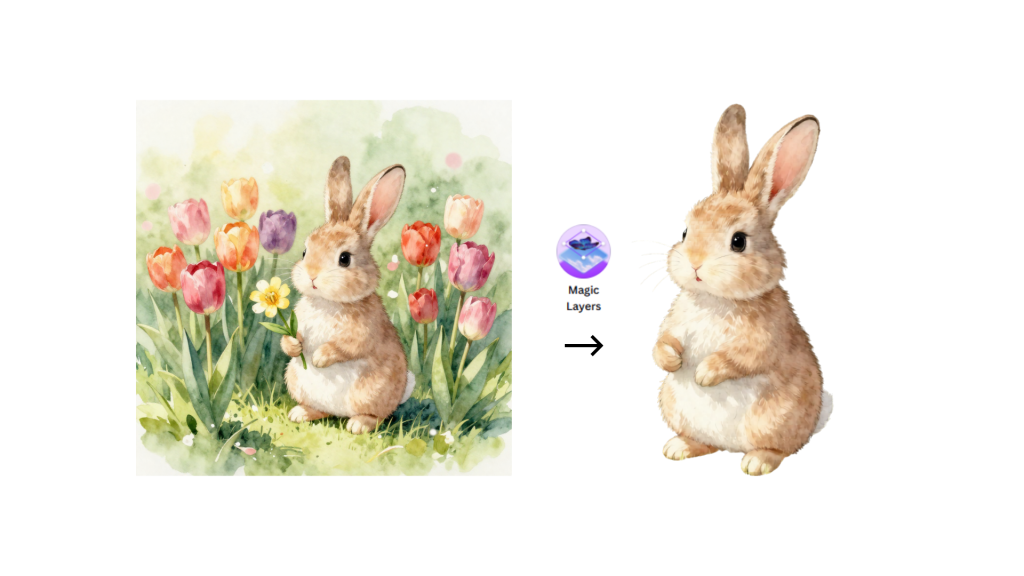
You can find internal and third-party integrations that expand capabilities with AI image generation and data visualization. Canva’s magic tools range from “Magic Edit” to “Magic Layers.” These innovative features allow you to modify and personalize images like never before.
Continue learning with Design School
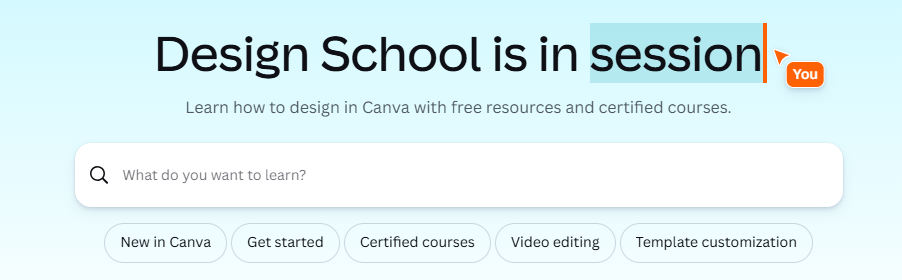
Learning never stops! Explore Canva’s educational hub to find structured courses, tutorials, and even live events! Canva’s built-in AI tools can also support you whenever you get stuck!
Want to see all of this in action? Check out our engaging course, 7 Canva Secrets Every Teacher Should Know, on OTIS for educators! (You might even come away with more than 7 new ideas to try!)
For more tips, tricks, and tools for teaching in and out of the classroom, check out more content on the Teq Talk blog or our YouTube channels OTIS for educators and Tequipment.
We also offer virtual professional development, training, and support with OTIS for educators. Explore the technology and strategies that spark student success — no matter where teaching or learning are happening!
Follow us on social:
 edteq
edteq  OTIS4educators | Teq Products | iBlocks
  MyTeq
MyTeq  Teq
Teq
Related Articles & Other Recommended Reading

Top 10 Ways to Celebrate Pi Day
Did you know that the first official Pi Day celebration occurred in 1988 at the Exploratorium in San Francisco? In America, we celebrate on March 14th because 3.14 are the first digits of the mathematical constant known as pi. However, in areas such as the United Kingdom, people celebrate on July 22nd. Why? This is […]

7 New PD Courses to Transform Your Classroom for February 2026
Get ready for Digital Learning Day on February 26th! Celebrate with 7 brand-new OTIS courses that make edtech integration easy. From AI-driven lesson planning to interactive classroom tools, master the tech your students love, without the steep learning curve. Here are 7 new PD courses to transform your classroom for February 2026! Check Out What’s […]

Check out our PD Micro-Credential: The Science of Reading
Earlier this year, OTIS for educators launched a PD micro-credential focused on “The Science of Reading.” This 10-part online course takes just under eight hours to complete. “The Science of Reading” micro-credential PD provides participants with a solid foundation of the tenets of reading instruction. We will delve into each component, critical for understanding the […]